Fake YouTube Video Maker for Creators: Mock and Test

Stella writes SwipeStory guides about AI faceless video creation, short-form video strategy, creator tools, and automated publishing workflows.
A fake YouTube video maker is a mockup generator that recreates the YouTube player or Shorts UI so you can preview thumbnails, titles, and metadata before publishing a single frame. The immediate recommendation: use it for packaging and testing, not deception. Creators who A/B test thumbnails visually before upload consistently make sharper creative decisions earlier in the timeline, cutting rework and guesswork out of the process.
The core use case is simple. You build a realistic preview of how your video will appear in the YouTube feed, run it past your team or client, and iterate on the title or thumbnail before committing to a final edit. For Shorts, that means checking whether your on-screen text lands inside the safe zone or gets buried under the engagement buttons. For sponsorship pitches, a mockup inside the actual YouTube player is far more persuasive than a loose thumbnail file attached to an email.
Pro Tip: Before sharing any mockup externally, add a visible "Sample" or "Mockup" label directly on the image. This one habit keeps you clear of any misrepresentation concerns and signals professionalism to clients.
Table of Contents
- What does a fake YouTube video maker actually do?
- How creators actually use these tools in their workflow
- What features should you expect, and where does AI fit in?
- Step-by-step: how to build and test a YouTube mockup
- How to choose the right fake YouTube video maker
- What are the ethical and legal limits of using these tools?
- How Swipestory helps creators go from mockup to published video
- Key Takeaways
- The part most creators skip
- Start building with Swipestory today
What does a fake YouTube video maker actually do?
A YouTube mockup generator builds realistic previews of the YouTube player and Shorts UI so creators can see exactly how their packaging will look to a viewer — without publishing. Think of it as a preflight check for your video's first impression.
Most tools let you customize a wide range of interface elements:
- Thumbnail image (typically 1280×720 pixels, JPG or PNG)
- Video title and description text
- Channel name and profile icon
- Subscriber count and upload date
- View count, like count, and comment count
- Video duration overlay
- Captions and on-screen text positioning
- Shorts 9:16 UI overlays, including the engagement button column
The practical applications are immediate. A creator testing two thumbnail concepts can drop both into a mockup, screenshot them side by side, and share with a team for a quick vote — no upload, no live test, no algorithm exposure. Agencies use the same approach during client pitches because a video sitting inside the real YouTube player frame is more convincing than a standalone image. And for Shorts planning, seeing your hook text rendered inside the actual mobile UI reveals dead zones you'd never catch in a standard editing timeline.
How creators actually use these tools in their workflow
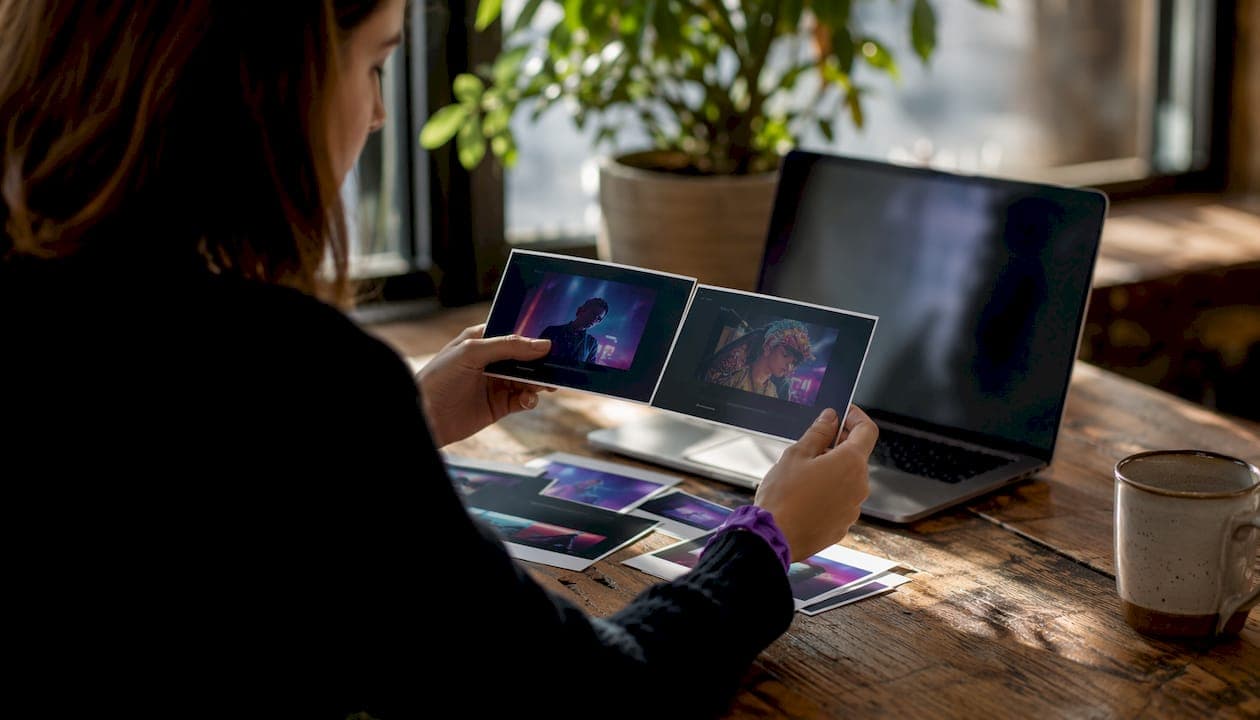
The most common scenario is thumbnail A/B testing. You build two or three variants of the same video with different thumbnails and titles, screenshot each mockup, and run a quick internal poll or send them to a small group before committing to one. No impressions wasted, no live experiment needed.
Sponsorship pitches are another strong use case. Agencies frequently present mockups during client meetings because a realistic preview inside the YouTube player is more persuasive than isolated assets. A brand can see exactly how their product will appear in context, which shortens approval cycles.
Static image exports work best for thumbnail testing and pitch decks. When you're planning a Shorts series, though, you want the full 9:16 simulation with UI overlays. Shorts simulators recreate the mobile interface so you can spot which parts of your frame get covered by the like button, the share icon, or the channel name bar. That's the difference between a hook that lands and one that's half-hidden on a viewer's phone.
Here's a quick real-world example: a creator planning a Shorts series on productivity tips builds a mockup with their hook text positioned in the upper third of the frame. The simulator shows the text overlapping the subscribe button. They shift the text down 80 pixels, re-check the mockup, and lock in the layout — all before recording a single second of footage.
What features should you expect, and where does AI fit in?
The baseline feature set for any solid fake video generator covers:
- Upload formats: MP4, MOV, and WebM for video; JPG and PNG for thumbnails at 1280×720
- Local in-browser rendering so your unpublished assets never reach a third-party server
- No-watermark export on at least the paid tier
- Channel and metadata editing (name, icon, counts, date)
- Shorts 9:16 simulation with accurate UI overlays
AI features add a layer on top of that. Some platforms output predicted CTR estimates, retention curves, and engagement tiers based on your title, thumbnail, and hook inputs. These are model-generated estimates, not guarantees, and they should be treated as directional signals rather than hard forecasts. A high predicted CTR score is a reason to feel confident about a direction, not a reason to skip real audience testing.
| Export Target | Aspect Ratio | Recommended Thumbnail | Notes |
|---|---|---|---|
| YouTube standard | 16:9 | 1280×720 px | JPG/PNG under 2 MB |
| YouTube Shorts | 9:16 | 1080×1920 px | Check UI dead zones |
| TikTok / Reels | 9:16 | 1080×1920 px | Safe zone varies by platform |
Swipestory supports multiple social formats including TikTok, Instagram Reels, and YouTube Shorts, which makes it practical for creators who need cross-platform exports from a single workflow rather than rebuilding assets for each channel.
Step-by-step: how to build and test a YouTube mockup
-
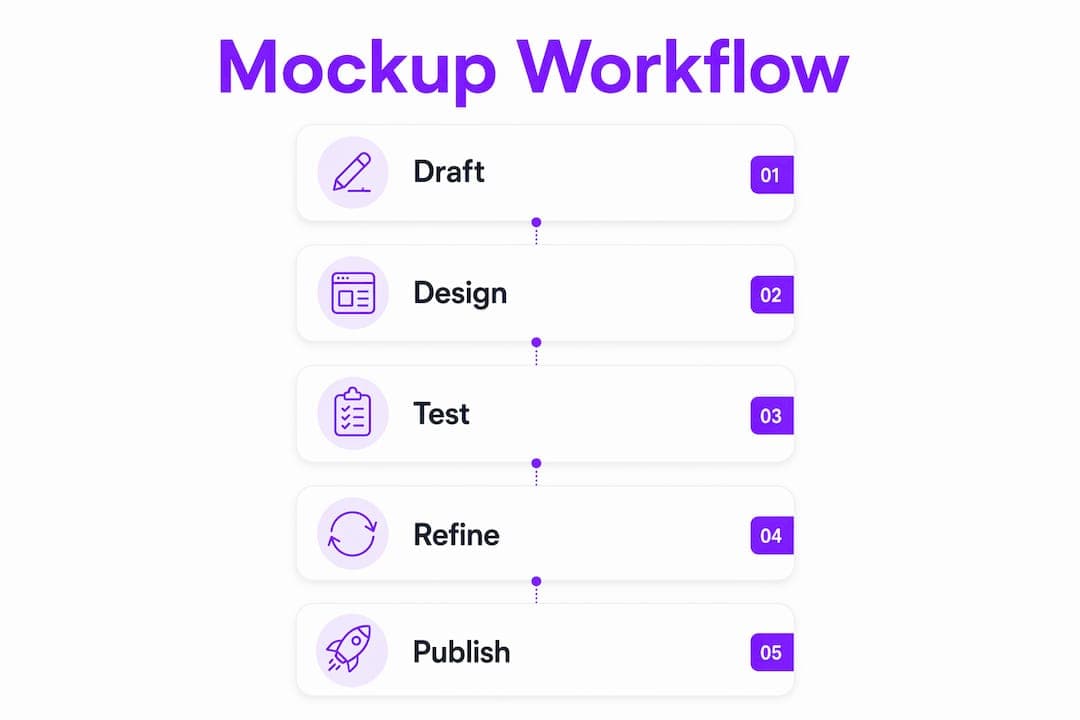
Prepare your assets (5 minutes). Export your thumbnail at 1280×720 pixels. If you're testing Shorts, have a 1080×1920 version ready. Write two or three title variants before you open the tool.
-
Build the base mockup (5–10 minutes). Upload your thumbnail, fill in the channel name, subscriber count, view count, and upload date. Use realistic numbers — a mockup with 847K subscribers reads more credibly in a pitch than a round 1M.
-
Create variants (5 minutes each). Duplicate the base and swap in each title or thumbnail alternative. Keep everything else identical so the comparison is clean.
-
Run an AI simulation if available (2–5 minutes). Input your title and hook text to get a predicted CTR or engagement tier. Treat the output as a directional diagnostic, not a verdict.
-
Compare and decide (10 minutes). Line up the variants side by side. Check mobile readouts for Shorts — does your text survive the UI overlay? Share with one or two trusted collaborators for a fast gut-check.
-
Export and label (2 minutes). Save the final mockup as PNG or MP4. Add a "Mockup" watermark or label before sharing outside your team.
Pro Tip: For Shorts, always preview the mockup on an actual phone screen before finalizing. What looks fine on a desktop monitor can lose critical text to the engagement button column on a 6-inch display.
Total time per mockup: roughly 15–30 minutes. Batch A/B tests with three or more variants will run longer, but the upfront investment consistently beats the cost of re-editing a published video.
How to choose the right fake YouTube video maker
Run any tool through this checklist before committing:
- Local rendering: does it process files in your browser, or does it upload to a server? Browser-based tools protect unpublished content.
- Export quality: can you download a clean PNG or MP4 without a watermark on the free tier, or is that paywalled?
- Shorts support: does it include accurate 9:16 overlays with the engagement button column?
- AI feedback: does it offer CTR or retention estimates, and does it clearly label them as estimates?
- Templates: are there pre-built layouts for different video categories?
- Pricing: what does the free tier actually include? Batch exports and analytics are almost always paid features.
Red flags worth walking away from: tools that require a server upload without a clear privacy policy, hidden watermarks that appear only after export, any platform claiming to predict real algorithm outcomes with certainty, and features explicitly designed for impersonation. Some generators include explicit disclaimers stating they are for entertainment and educational use only and are not affiliated with YouTube or Google — that transparency is a good sign.
For AI content creation tools that go beyond mockups into full production, the selection criteria shift toward output quality and format flexibility, but the privacy and watermark questions stay the same.
What are the ethical and legal limits of using these tools?
The short version: mockups are for your workflow, not for misleading anyone else.
- Label everything: any mockup shared outside your immediate team should carry a visible "Sample," "Mockup," or "Illustrative" tag.
- Never impersonate: don't use a real creator's channel name, icon, or subscriber count to fabricate content.
- Don't spread misinformation: a realistic-looking fake video post can cause real harm if it's shared as genuine.
- Don't present mock metrics as real: showing a client a mockup with 2.3M views is fine; claiming those are real numbers is not.
On the tool side, AI predictions are model estimates and these platforms are not affiliated with YouTube or Google. No mockup tool can replicate real audience behavior, and no simulation output is a performance guarantee.
Pro Tip: Keep an audit trail. Save dated copies of your mockups labeled "illustrative" so you always have a record of what was shared and when.
Check YouTube's Terms of Service and your local laws before using mockups in any commercial or public-facing context. This article is general information, not legal advice.
How Swipestory helps creators go from mockup to published video
Swipestory maps directly to the workflow described above, but it takes the process further than a static mockup tool. The platform automates script-to-video production so creators can move from a tested concept to a finished short without switching tools.
Key features relevant to the mockup-to-publish pipeline:
- Customizable captions with font, size, and position controls
- Advanced image generation for thumbnails and visual assets
- Cloud rendering that handles processing without local hardware limits
- Multi-format export covering YouTube Shorts, TikTok, and Instagram Reels
- Templates for different video categories and styles
Swipestory has generated more than 60,000 short videos for creators on the platform — a signal that the workflow is proven at scale, not just in theory.
For creators who want to go beyond mockups into full faceless video production, Swipestory's AI handles voiceovers, scene rendering, and caption placement in a single pass. That means less time in post and more time testing the next concept.
Key Takeaways
A fake YouTube video maker is most valuable as a preflight tool: build mockups, test variants, and make packaging decisions before a single frame goes live.
| Point | Details |
|---|---|
| Core purpose | Mockup generators recreate the YouTube UI so you can test thumbnails and titles without publishing. |
| Shorts dead zones | Always simulate 9:16 layouts to check whether UI overlays hide your on-screen text or CTAs. |
| AI predictions | CTR and retention estimates are directional signals, not guarantees — use them to narrow options, not to finalize decisions. |
| Ethical rules | Label all mockups clearly, never impersonate real creators, and never present simulated metrics as real performance data. |
| Swipestory | Takes creators from mockup concept to finished short video with AI-powered script-to-video, cloud rendering, and multi-format export. |
The part most creators skip
Most guides on fake video generators stop at "here's how to build a mockup." What they miss is the decision layer: a mockup is only useful if you actually change something based on what you see.
The creators who get the most out of these tools treat every mockup session as a structured question. Not "does this look good?" but "which of these two thumbnails would make me click if I didn't know what the video was about?" That reframe turns a visual exercise into a real creative filter.
The ethical side is also underplayed. The line between a legitimate mockup and misleading content is thinner than most people assume, and it's drawn entirely by context and labeling. A mockup shown in a pitch deck with a "Sample" tag is professional. The same image posted to social media without that label is a different thing entirely. The tool doesn't make that call — you do.
Start building with Swipestory today
If you've been spending hours on thumbnails and titles that don't move the needle, Swipestory gives you a faster path: go from a tested mockup concept to a finished, published short in one workflow. No separate editing app, no manual rendering, no format juggling across platforms.
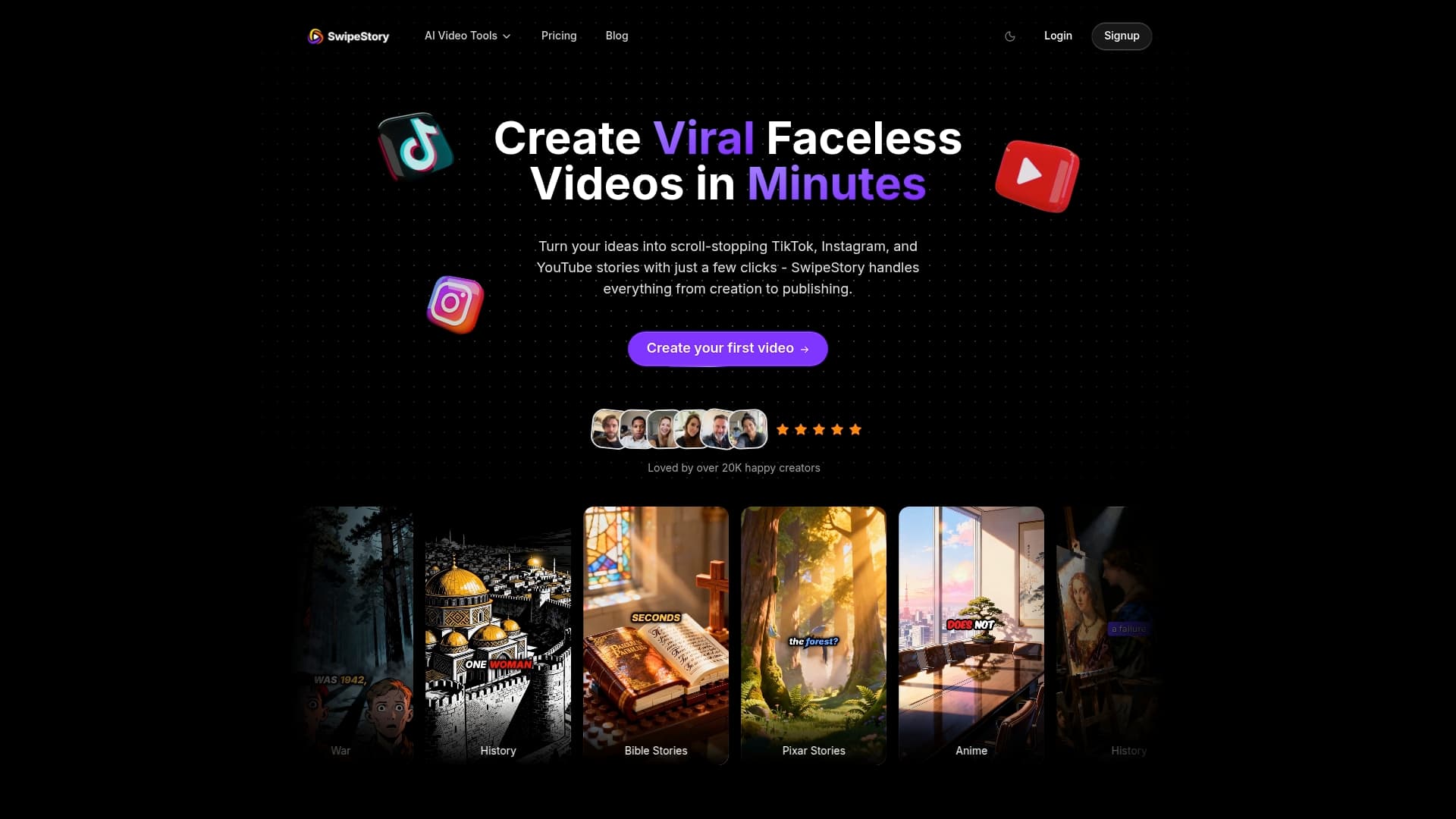
Getting started takes three steps: open the AI video generator, upload your assets or drop in a script, and export your finished short directly to YouTube, TikTok, or Reels. Swipestory's free tier lets you test the workflow before committing to a paid plan. For creators who want to see what the full pipeline looks like, the short video maker is the best place to start.